Documentation
Premium
Tomorrow
Set Up An AWS Account
Created by Thomas Kramer
Tuesday, May 5, 2026
Today's Project
In this project, I set up a new AWS account from scratch, configured billing details, enabled Free Tier usage alerts, and secured it with multi-factor authentication (MFA). This foundational setup ensures safe, cost-controlled access to AWS services like EC2 and S3 under the Free Tier.
Key tools and concepts
Key tools include AWS Management Console, Google Authenticator app, and IAM dashboard. Key concepts cover root user management, billing preferences, Free Tier monitoring, and security best practices.
Challenges and wins
This setup took about 10 minutes total. No major challenges arose, but verifying phone details and scanning the MFA QR code required careful attention to avoid errors.
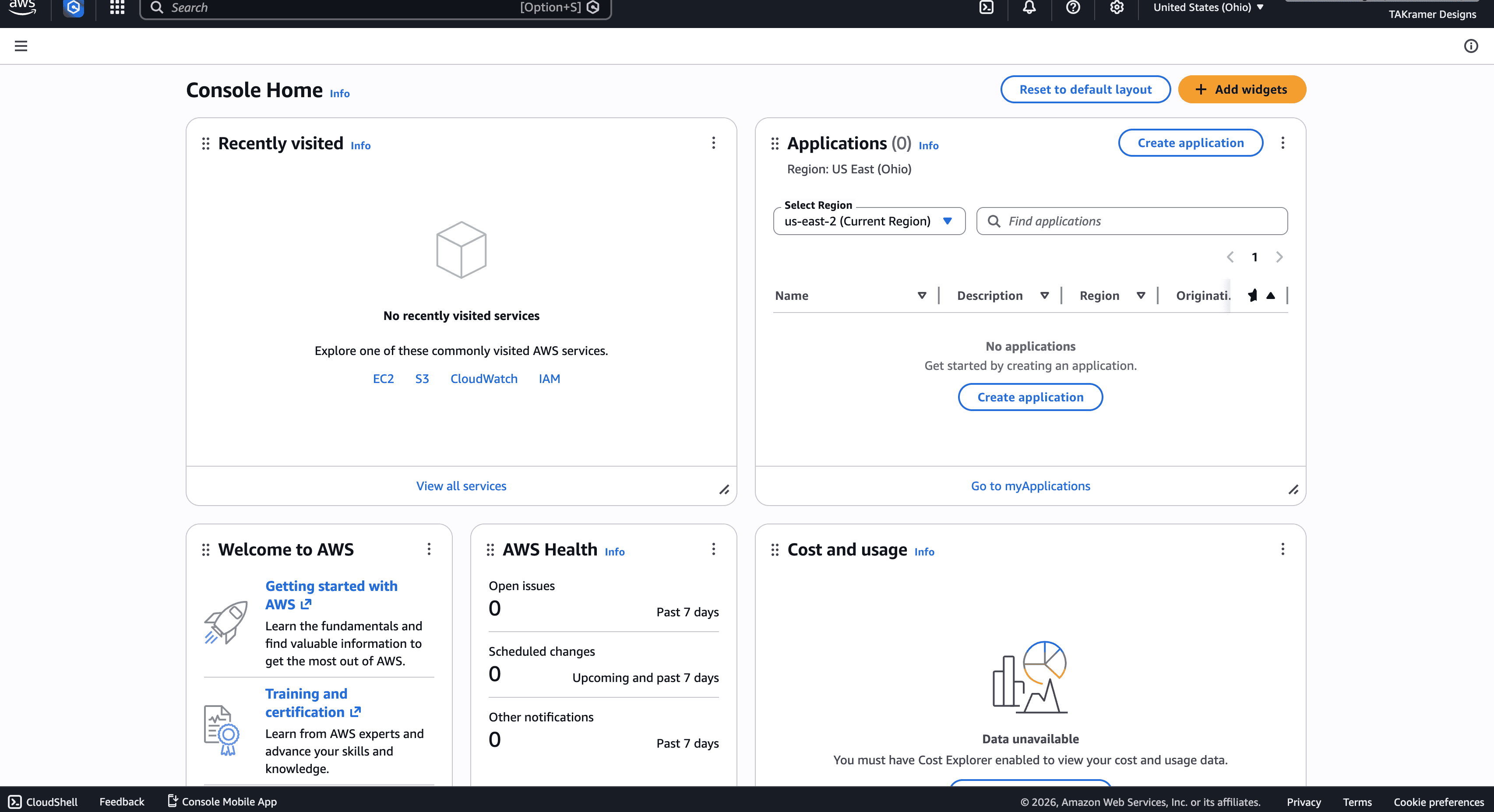

Creating My AWS Account
To create the account, visit aws.amazon.com, click "Create an AWS Account," enter a root email and strong password, then provide contact details (personal or business) and accept the Customer Agreement.
Choose "Continue" through steps: verify email with a code, add billing info, and confirm phone via PIN sent by text or call. This activates the account for console login at console.aws.amazon.com.
Understanding the Root User
The root user is the initial sign-in identity with complete, unrestricted access to all AWS services and resources, including billing changes.
AWS recommends using it only for initial tasks like enabling MFA or IAM billing access, then switching to IAM users for daily work to reduce security risks.
Setting Up Billing and Payment
Add a credit/debit card or bank account in the signup flow under "Add payment method," selecting it as default for automatic monthly charges.
AWS requires this because even Free Tier accounts (12 months of limited usage plus always-free offers) can incur charges if limits are exceeded, like leaving EC2 instances running.
Completing Account Activation
Select the Basic Support Plan (free), which provides 24/7 access to customer service for account and billing issues, plus AWS documentation and forums.
Identity verification involves entering email (already confirmed) and phone number, then inputting a 6-digit PIN delivered via SMS or call for fraud prevention.
Enabling Free Tier Alerts
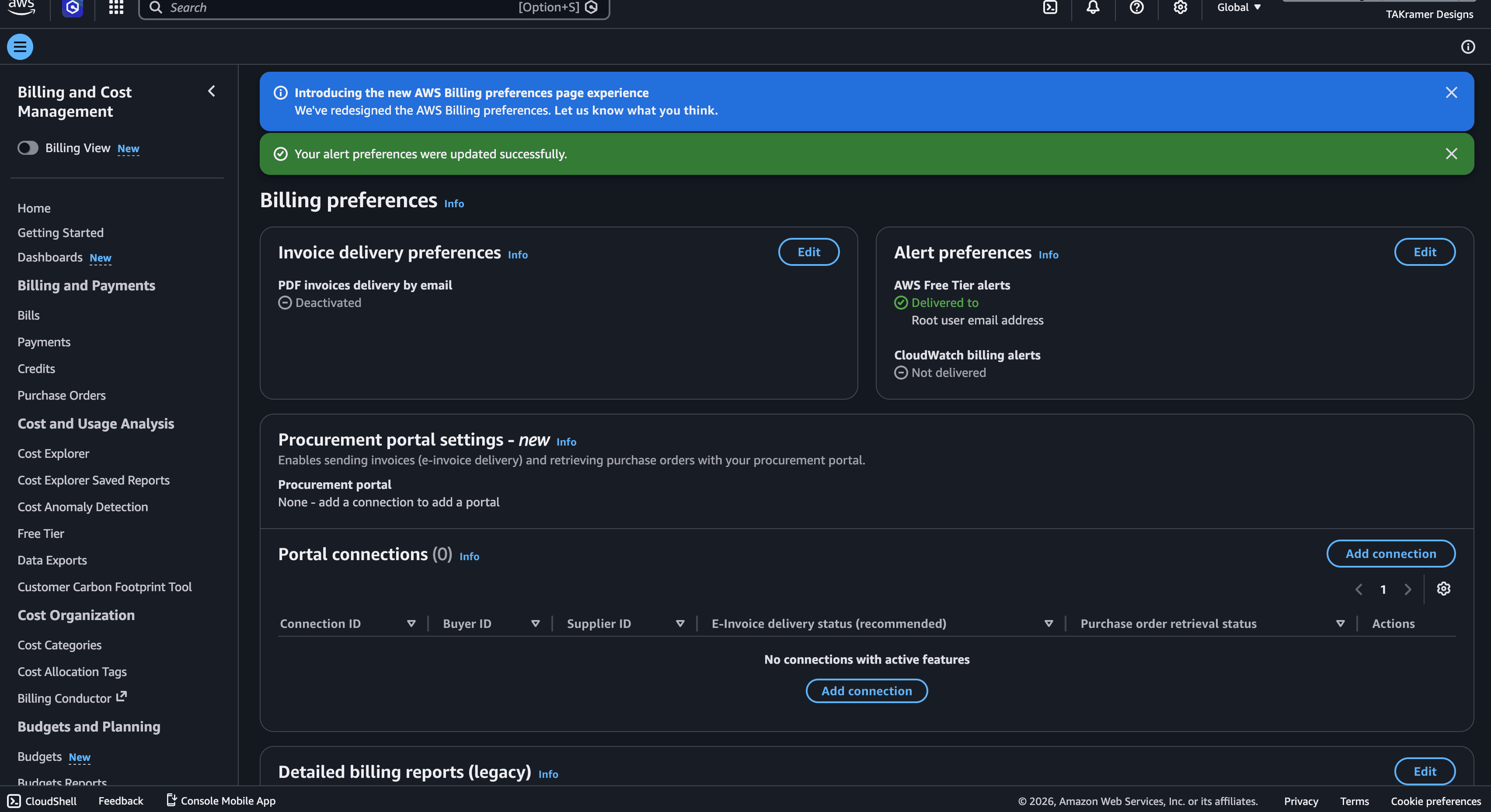
In the Billing console (console.aws.amazon.com/billing), go to Preferences > Billing preferences > Edit Alert preferences, enable "Receive AWS Free Tier alerts," and add your email.
These alerts email you at 85% of Free Tier limits per service (e.g., 750 EC2 hours/month), helping prevent surprise bills; opt for a $0 AWS Budget for 100% threshold notifications.
Usage matters because Free Tier includes always-free (Lambda 1M requests/month), 12-month free (EC2 t3.micro), and trials—exceeding triggers charges.
Securing the Account with MFA
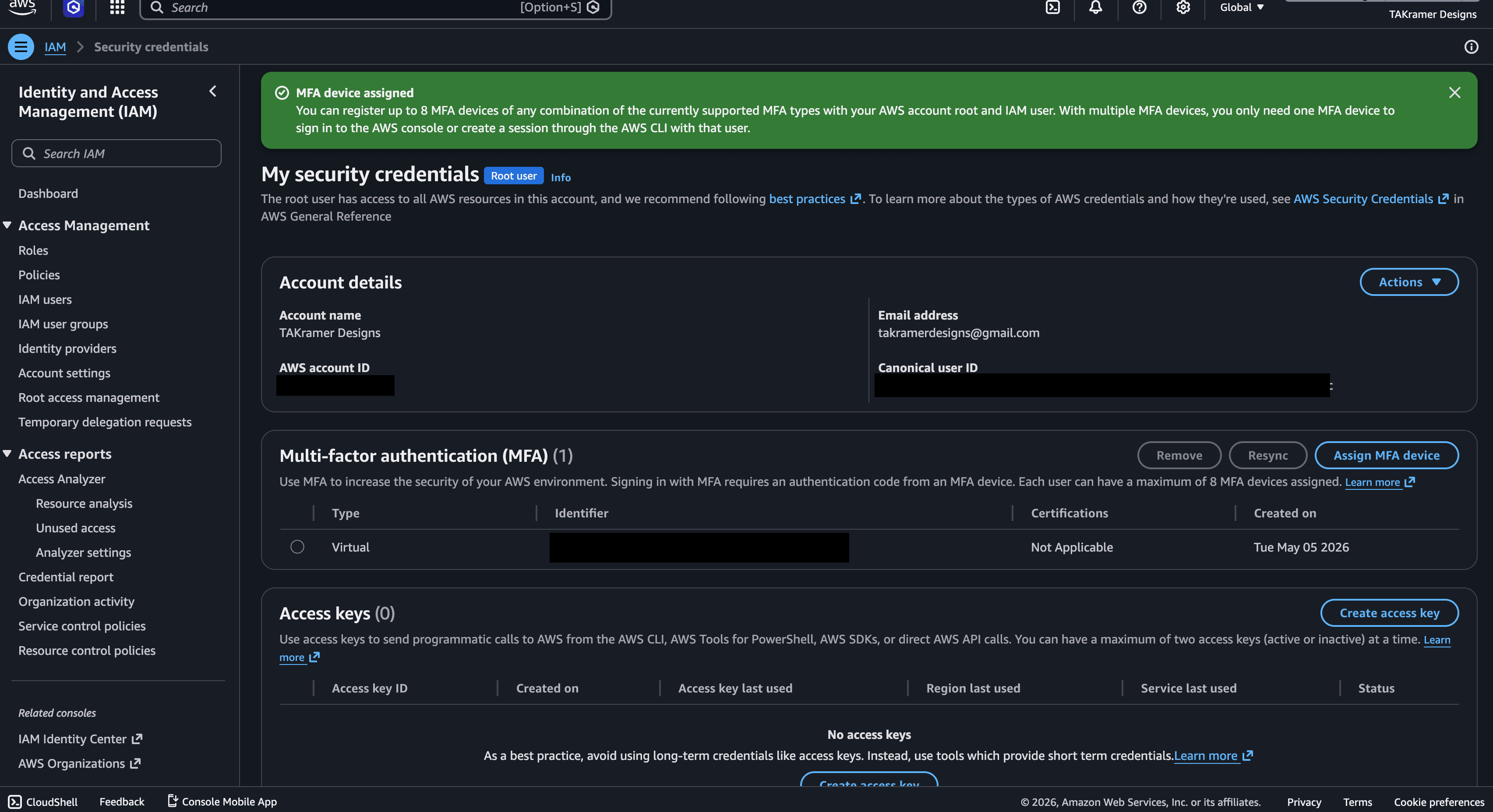
Log in as root, search for "IAM" in the console bar, go to Security recommendations or your username > Security credentials > Multi-factor authentication > Assign MFA device.
Select "Virtual MFA device," scan the QR code with Authenticator app (e.g., Google Authenticator), enter two consecutive 6-digit rotating codes to verify.
MFA adds a time-based one-time password layer, protecting against credential theft since root has full powers.
Share your work!
OpenGraph embed, .png